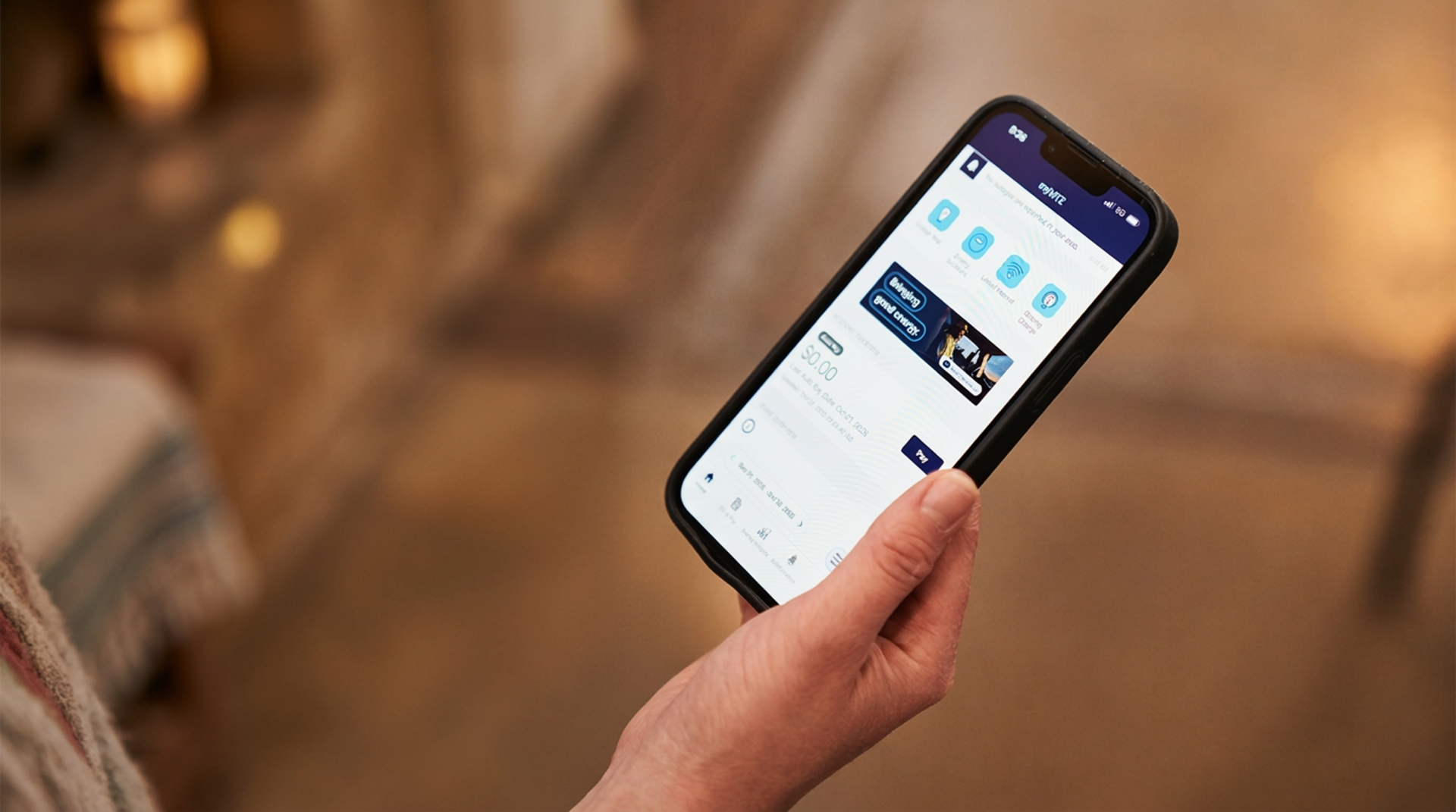
myMTE account setup
Your guide to getting started with myMTE
myMTE is Middle Tennessee Electric’s secure online platform for managing your account, paying bills, tracking energy use, and more. This page answers the most common questions members have about myMTE, helping you get started and make the most of its features. For additional support, our member support team is always ready to help.
Why should I use the myMTE app?
myMTE lets members:
- Pay bills
- Track daily energy use
- Report outages and view outage map
- Contact member support
- Find programs and resources offered by MTE
We’re always working to improve your experience and add more member-focused features.
Getting started with myMTE
To create your myMTE account, you’ll need:
- Your member account number — available on your printed bill
- Your last name or business name
- A valid email address
If you don’t have access to any of these, call member support at 877-777-9020 for assistance.
Registering your account
- You can register or manage your account from our mobile app or the web portal.
- To set up your account, select the ‘Don’t have an account? Register now’ link.
- Once registered, your login gives you access to the mobile app and web portal.
Setting up and managing payment options
Within myMTE, you can set up your preferred payment option. This can include bank drafts, debit cards, and credit cards.
To add your preferred payment method to the app, select the Bill & Pay button at the bottom of the app or on the left-hand menu of the web portal. From there, manage your payments and add new ones by selecting the Pay button.
myMTE also offers convenient options like Auto Pay via debit/credit card or an option to pay by cash at local businesses.
To learn more about these options, check out myMTE payment support.
Set up myMTE notifications
Stay informed about your account and service updates
Get real-time updates about outages, restoration updates, billing activity, energy use insights, and more with myMTE notifications. You can choose to receive alerts by text message, email, or mobile app push notifications, so you never miss important information.
To learn more about setting up and managing your notifications, visit mte.com/Notifications.
Security & User Management
Two-factor authentication (2FA)
Protect your account with an extra layer of security. Two-factor authentication ensures that only you can access your account, even if someone knows your password.
How to enable 2FA
- Log in to your myMTE account.
- Click on My Profile > My Information > Manage Two-Factor Authentication.
- Click on the indicator Enable two-factor authentication.
- Select a contact method: Email, Text Message, or One-Time Password Application.
- Enter the information for the selected contact method and then click on the Continue button.
- A verification code will be sent to the selected contact method.
- Enter the verification code and then click on the button Save.
Managing additional users
Primary users can add secondary users to their accounts for easier management.
How to add secondary users
- Go to the myMTE desktop portal.
- Hover on the menu item My Profile and select the My Information item from the dropdown menu.
- On the following screen, select the Manage My Registered Accounts option.
- From this screen, you can add additional users to your account using the Manage Additional Users section.
Auto-login
Auto-login lets you access your account quickly by saving your credentials. Use this feature only on private devices to protect your privacy.
- If you’re the only user of your computer, auto-login can save time.
- Avoid using auto-login on public or shared computers to keep your account secure.
myMTE general questions
What is SmartHub, and why do I see it in myMTE?
SmartHub is the secure, third-party software that powers the myMTE mobile app and web portal. It keeps your data safe and ensures a smooth experience.
Can I use SmartHub credentials from another utility?
No. myMTE is not connected to other utilities. You’ll need to create a new account using your MTE account number.
Why do I need to enable cookies?
Cookies help us understand how members use myMTE so we can improve the platform. Our vendor also uses cookies to strengthen security.
Contact MTE's Member Support Team

We understand our members expect more than just affordable, reliable, and safe electricity. You also expect outstanding member service, which includes helping you find answers and solutions to your concerns.
From myMTE app issues to billing questions and everything in between, our member support team is always here to provide you with the help you need. We've put together some useful information for you, but feel free to contact us directly to discuss any additional concerns you have.
Email: info@mte.com
Phone: 877-777-9020
Online: mte.com/Contact